
macOS
Download now

4.7 (1500+ reviews)
Crafted locally, trusted globally












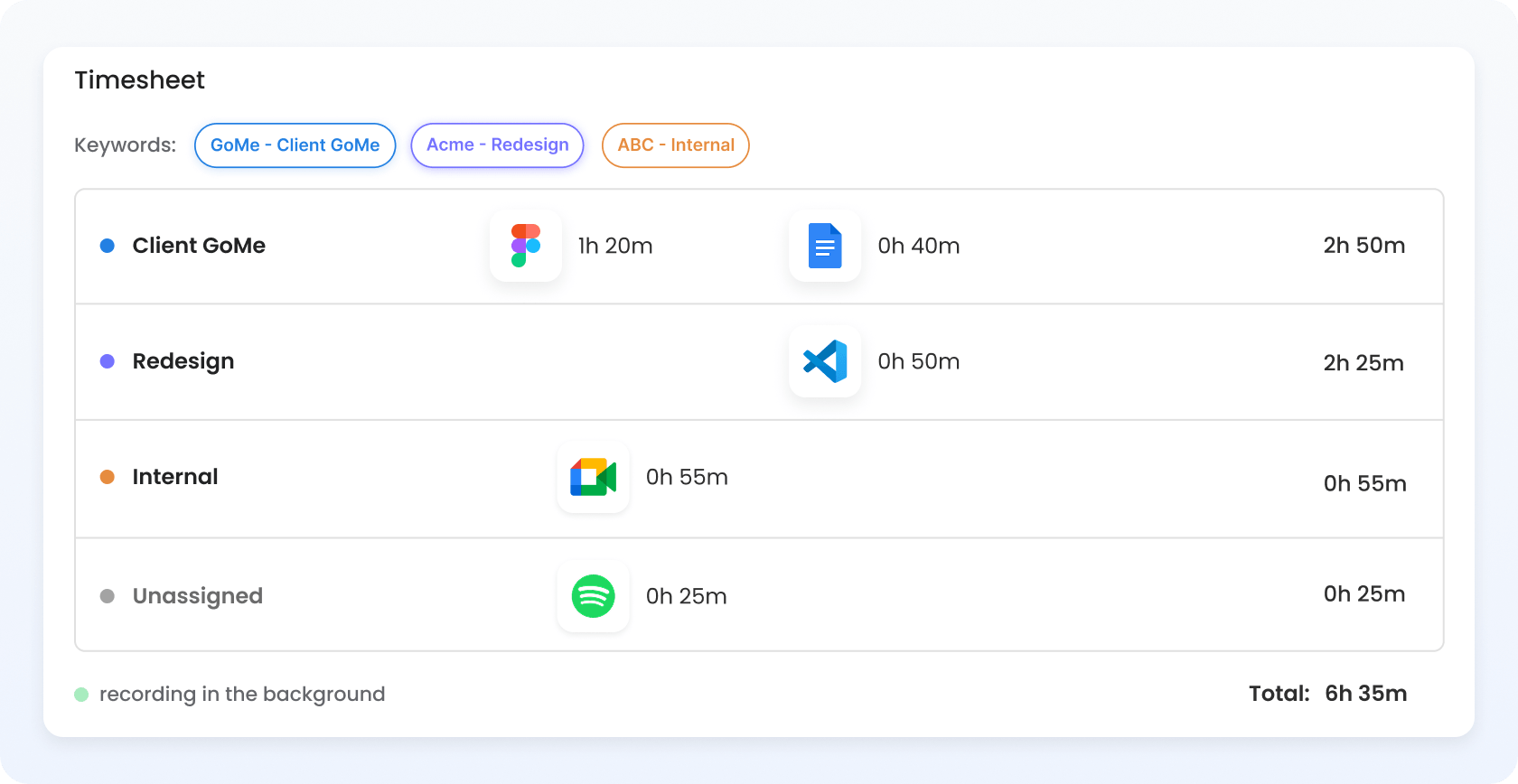
Automatic time tracking records how you spend your time in the background using an automated time tracker, reducing manual entry. In TimeCamp, automatic time logging in the desktop app matches project keywords with active apps, websites, and documents you use, and assigns time to the right projects. You set the rules, can still review exceptions, and can assign what's left unmatched.
 No manual start/stop required
 No more forgotten timers
 Activity turned into timesheets
 Review-ready records
Manual time tracking requires you to start a new timer or enter hours by hand. Automated time tracking records activity while you work and ensures all time is tracked and assigned to the right project, so your team's effort always reflects on the final invoice. TimeCamp supports both ways, so you can still track time automatically and enter hours manually when needed.
| Feature | Automatic tracking | Manual tracking |
|---|---|---|
| Data entry method | Recorded while you work | Entered by hand |
| Start/Stop required | No | Yes |
| Forgetting about submitting time | Never | Often |
| Automatic context of activities | Yes (captured automatically) | No (added manually) |
| Editing | Yes | Yes |
| Work away from the computer | Added manually or via Away Time | Entered manually |
| User control | Review or edit available | Direct control |
| Setup | Quick configuration | Minimal |
| Review needed | Yes, unmatched activity only | Yes, all before submitting |
| Reporting completeness | Feeds reports with data constantly | Depends on user discipline |
| Best for | Continuous computer work | Small batch of repetitive tasks |
| Feature | Automatic tracking |
|---|---|
| Data entry method | Recorded while you work |
| Start/Stop required | No |
| Forgetting about submitting time | Never |
| Automatic context of activities | Yes (captured automatically) |
| Editing | Yes |
| Work away from the computer | Added manually or via Away Time |
| User control | Review or edit available |
| Setup | Quick configuration |
| Review needed | Yes, unmatched activity only |
| Reporting completeness | Feeds reports with data constantly |
| Best for | Continuous computer work |
| Feature | Manual tracking |
|---|---|
| Data entry method | Entered by hand |
| Start/Stop required | Yes |
| Forgetting about submitting time | Often |
| Automatic context of activities | No (added manually) |
| Editing | Yes |
| Work away from the computer | Entered manually |
| User control | Direct control |
| Setup | Minimal |
| Review needed | Yes, all before submitting |
| Reporting completeness | Depends on user discipline |
| Best for | Small batch of repetitive tasks |
Because manual time tracking keeps falling short – it's just another tedious thing to remember every day. Automatic time tracking just does it for you, so you can forget about it and focus more on what really matters at work.
Automated time tracking catches data that goes unregistered by relying on timers, incomplete timesheets, and all the short tasks users keep forgetting. TimeCamp also captures billable hours that disappear when switching between clients, making work easier to review and account for.
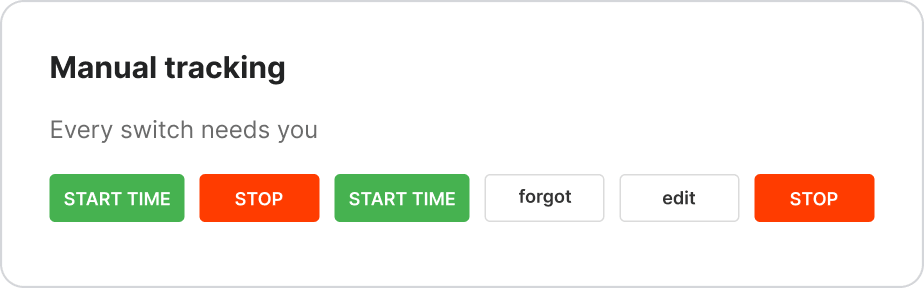
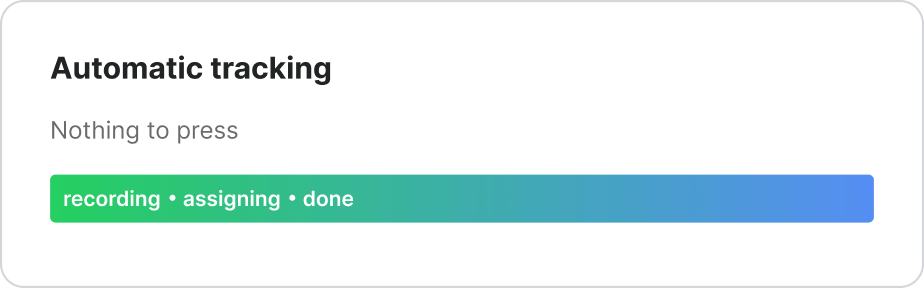
TimeCamp tracks time automatically in the background, so you no longer need to reconstruct days from memory. Our time tracking tool feeds your reporting, project budgets, and billing workflows with time data, ensuring billable hours are tracked consistently and accurately.
Consistent flow of billable hours
Even the shortest task with billable hours lands in the timesheet.
 Reliable reports
Time data goes straight to reports, enabling detailed project and team performance.
 Informed business decisions
Accurate records justify project budget adjustments or staffing needs.
TimeCamp's desktop app runs while you work and assigns time and activity to projects based on keywords. Automatic time tracking is 99% accurate right after implementation, so every billable hour you, your team, or external contractors worked is captured and assigned to the right projects without manual input.
Assign keywords for each project and task. Use e.g. names of clients, apps, websites or documents.
Install a lightweight app on Windows, Mac, or Linux, and let it open automatically when you log in.
The app starts a timer for the relevant task when the activity matches and fills your timesheets as you work.
Download now

I recommend solutions like TimeCamp, with its automatic tracking, rather than those where the user must set the timer – it's just too easy to forget!
Keyword searches make it easy to find and categorize task- and project-specific time.
Yes, by assigning keywords to projects, you give TimeCamp the context. Just enable automatic tracking mode in the desktop app and see how each keyword says it all – it's this file, this repo, or this client that belongs to this project.
You feed TimeCamp context by creating lists of keywords that describe what the project is about. This way, TimeCamp can associate recorded time with tasks and turn them into time entries in your timesheets while you work.
In auto mode, TimeCamp's desktop app selects projects and tasks based on configured keywords. Create a separate keyword list for each project or task, sync the app, and enable automatic mode. You can then review unmatched activity in the timesheets and assign it by hand.
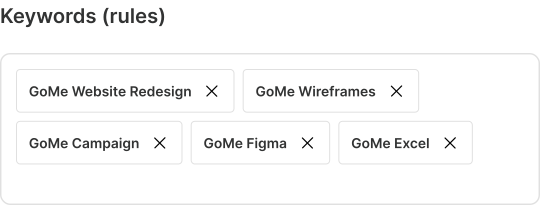
Yes, TimeCamp identifies applications, websites, and documents recorded in the background while you work, and when the relevant settings are enabled for your account. Keywords use only names and titles to match the activities to tasks; they don't browse window contents.

You assigned the word GoMe to this project, so the app recognizes the rule and knows this activity belongs.
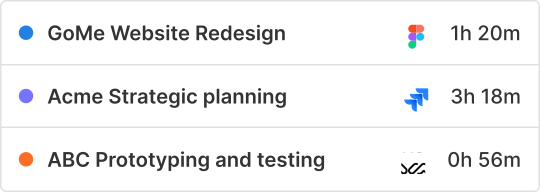
You see entries assigned to the right projects, and think, "There's nothing for me to do!" Just focus on your work.

Activity that matches no rule stays unassigned – decide yourself where it belongs or just adjust your keyword lists.
Manual time tracking relies heavily on guesswork. With TimeCamp and its keyword-based automatic time tracking, your and your entire team's workdays are registered down to the last second and assigned to the right projects. This way, detailed reports always show the big picture, and client billing reflects your effort and what's been estimated.
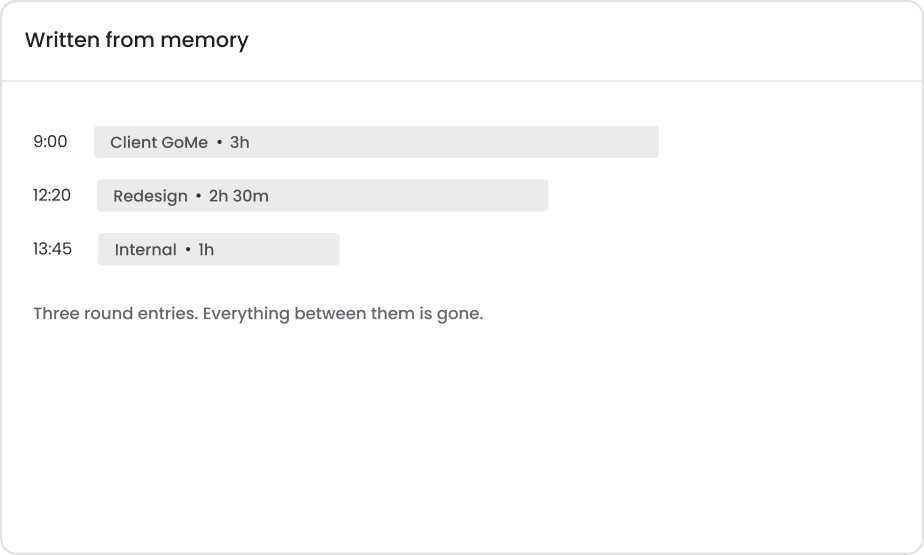
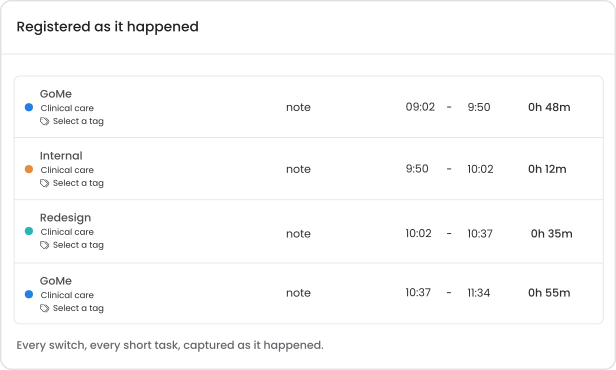
Automatic time tracking supports billing and payroll preparation by accurately recording billable hours. However, captured time always needs review. TimeCamp's clean interface and timesheet approvals help you check project assignments, billable status, breaks, and applied rates before the records go to the invoice or payroll.
Automatic time tracking software captures every small task that's easy to forget between the big, memorable batches.
Automated time tracking software records how long employees worked and when. Employee monitoring features, on the other hand, help you analyze registered activity, such as apps and websites used during work hours. TimeCamp provides both through easily configurable features, so tracking levels depend on which modules are enabled for your account.
Tracks when and how long employees work and feeds your projects time reports.
Know more about reporting
Provides detailed analysis of apps and websites used, and is configured through separate modules.
Explore monitoring feature
TimeCamp's rigorous privacy standards and many options for configuring automated workflows keep your data safe and accessible based on user roles.

TimeCamp records app names, website addresses, and document titles, never what's inside.

Employees can review or edit tracked time before submitting timesheets for approval.

Unmatched activities with no detected keywords can be assigned in timesheets.

Users take breaks via Private Time, and the amount of it can be defined in Settings.

Idle time can later be classified as meetings, breaks, or other activity.
TimeCamp's classic desktop app is available for both Windows and macOS and also supports Linux. This way, employees on different operating systems can use the same time tracking software.
Download now
Yes! TimeCamp automatic tracking and keywords are available on all plans, including the Free plan. Computer activity tracking is also enabled for Free (for the past 24 hours). More detailed activity tracking is available from the Premium plan.
TimeCamp's automated time tracking is a good fit for teams that bill their clients by the hour and need accurate data on project profitability without filling out timesheets manually. Start with a free trial to assess the features and deployment type against your budget and workflow.
If your business needs billing consistency, switch from manual timers and Excel timesheets to an automatic time logger.
 Agencies
Track time across multiple campaigns to improve client billing completeness.
See Agency solutions
 Consultants
Never lose billable hours due to reconstructing timesheets from memory.
See Consulting solutions
 Dev Teams
Capture the smallest work across tools without switching timers all the time.
Get Dev Team solutions
 Remote Teams
Get timesheets filled in on time, no matter where your employees work from.
Get remote insights
TimeCamp saves teams and professionals whose day is split between different projects, tasks, and clients up to 30 minutes per week on time recording. With its 99% accuracy since day one, managers can say goodbye to chasing employees for their timesheets.
"I've found TimeCamp's ability to automatically track to particular projects based on keywords found in application window titles, browser URLs etc. completely and utterly invaluable. After some initial setup it's taken all the work out of time tracking entirely."

"I've set up my customer and project keywords, and it tracks my hours (down to the second!) seamlessly in the background."
"After setting up keywords/rules, TimeCamp works in the background, tracking specific activities without needing to do anything."
"I no longer need to track anything - it's all automatic. All I need to do is check once a month and get my totals. It's been a game changer for me."
"The automatic tracking, keyword/desktop window detection, and integrations (with tools like Trello, Jira, Slack) meant I spent far less time asking “what did I work on this morning?”"
"My app and even tab-level usage is tracked automatically in the background, and I can (...) easily identify how much time I spent on different tasks for different clients."
"I love that TimeCamp has apps & website tracking to automate time entries."
"With automatic activity tracking I get as a bonus to track distractions too!"
Switching to TimeCamp? Keep your existing time and project structure as a starting point – we'll help you map it into TimeCamp's workflow. Then start tracking time and see how TimeCamp fills timesheets automatically and closes gaps that previously cost you billable hours.
Background tracking records time and activity when TimeCamp's desktop app is running. The settings you enable determine what data is collected, but TimeCamp can track apps and website names, activity durations, starts and stops of employees' computers, idle time, and optional screenshots.
When computer activities are enabled (it's an optional module in TimeCamp), the desktop app records application names, website addresses, and document titles for all active sessions. It doesn't register what's inside. TimeCamp stores time entries and activity on our servers, but if your team prefers self-hosted deployment, data is stored locally.
No, when TimeCamp tracks time in auto-mode, it automatically switches between tasks when it recognizes relevant keywords and starts a new timer. There's no need to do it manually.
TimeCamp replaces manual tracking and offers editable timesheets, so you can record meetings and calls away from the computer, fix incorrect matching, or add any other missing time. Automation reduces manual entry, yet we always recommend validating final records.
Yes, right away – TimeCamp's automatic desktop app mode changes between tasks when work that matches specific keywords is detected. The timer runs, but the automation controls it. You can then review work that wasn't matched to any task.
Yes, when the active application's name matches a relevant task keyword, TimeCamp starts recording time to that task. Context is the most important here.
If TimeCamp can't match time entries to projects because a related keyword hasn't been added yet, it just creates a separate line in the timesheet named "unassigned computer activities". You can always review these activities and assign them to the right projects by hand.
Yes, you can configure in settings how much time the desktop app considers mouse and keyboard inactivity as idle time. The Away Time module shows breaks, and you can assign them to certain activities so the time counts as effective working time.
You can add meetings and calls that happen outside your office or away from your computer in the Away Time module. This way, you can be sure they'll end up in the computer activities report. You can also add them manually to the timesheet or link TimeCamp with your Calendar account, so calendars and events automatically land in your timesheet as new time entries.
Yes, TimeCamp time tracking services work even when you're offline. Once you're back online, our time tracker tool syncs your time entries and computer activity, so they make it to the timesheet in the web app.
Yes, because TimeCamp enables tracking time on remote desktops. If you or your employees connect to virtual machines, you can register those connections and computer usage from a remote location. To avoid doubling data, you can configure it in the Computer Activities settings.
While TimeCamp offers timers in a web app and browser extensions, keyword-based time tracking requires installing a desktop app. Plugins add timers to supported websites, but it's not the same as background desktop time capture.
Automated time tracking and keywords are part of our free plan for unlimited users and unlimited projects. Apps and URLs tracking are available on the Premium plan.

While other time trackers promise "one click" or "just a few clicks" time tracking, TimeCamp helps you forget about timers for good. Sign up for a free account and download our desktop app to see it for yourself, or book a demo to let our experts introduce you to our automatic time tracking software.


 Google