









TIME TRACKING WITH SCREENSHOTS

Prove your work before billing

Connect screenshots with projects and time entries to verify the job done before sending an invoice. 

Time Tracking With Screenshots top image

4.7 (1500+ reviews)

Crafted locally, trusted globally

Bill projects based on proofs, not estimates

Add extra context to your work hours to rule every billing dispute in your favor.

Full work context, no random numbers

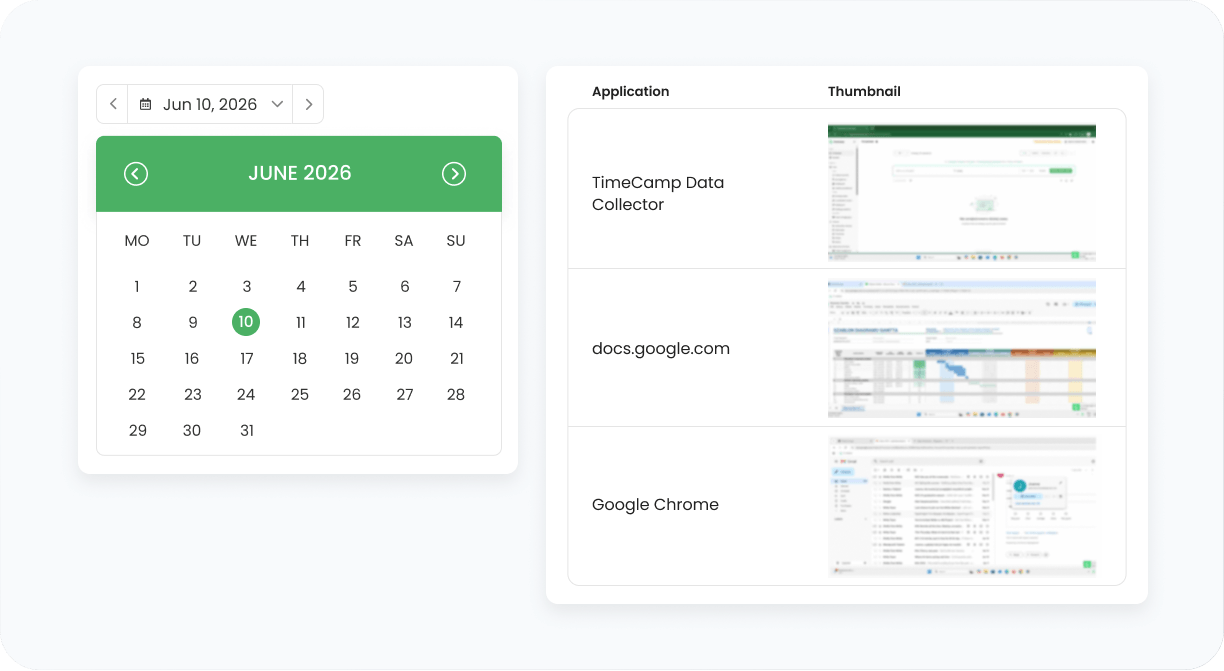
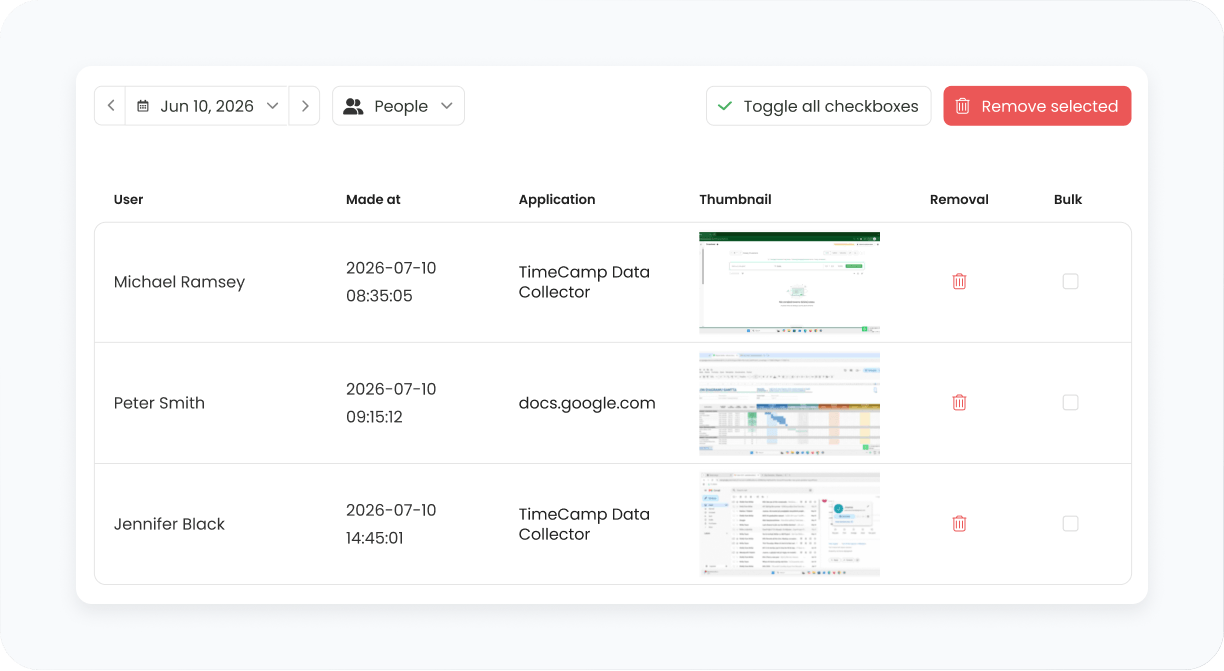
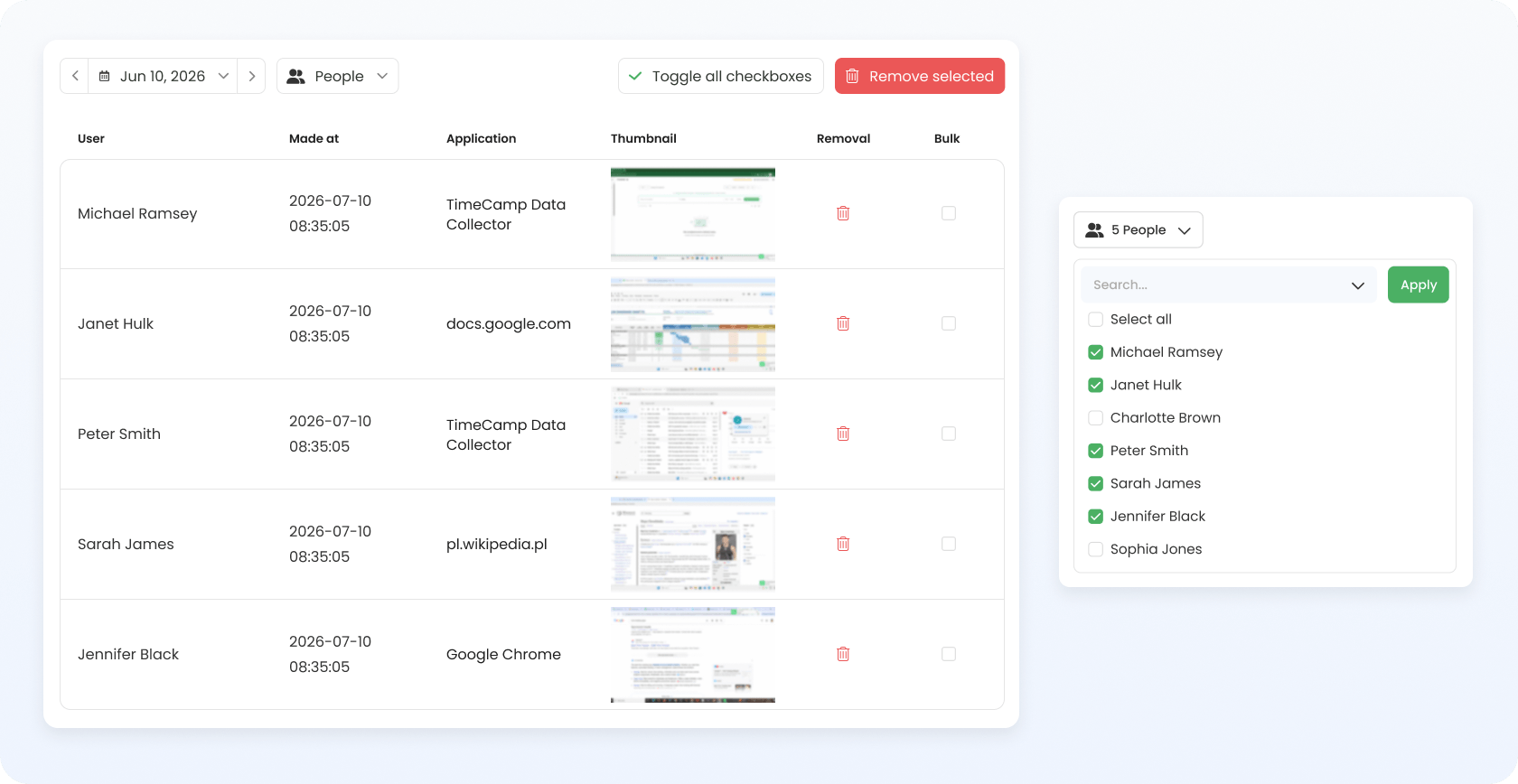
The desktop app captures screenshots at set intervals (default: every 10 minutes, admin-adjustable) and adds them to a report, filtered by date and employee. This way, every hour gets visual context and an extra layer of transparency into employees’ work.

features
features

Privacy by default

In TimeCamp, time tracking with screenshots is an optional feature, not a part of every setup, and the account administrator turns it on. Screenshots are blurred; the capture works only when the desktop app is running.

Full workday, no random snapshots

Screenshots are an integral part of the desktop app ecosystem, which also tracks time and activity and assigns it to tasks based on keywords. This way, all visual samples are backed by an accurate record in the computer activity report and online timesheet.

features

Bill hours you actually worked

Use the TimeCamp desktop app and invoice based on data, not by “that sounds about right”.

14-day free trial No credit card required
badge
badge
badge

Get visual context for every workday

Track time on any device and monitor progress with detailed time and activity reports. Use screenshots as an extra layer of insight into how your projects are moving forward.

Agencies category image Agencies

Bill clients for every hour worked, with screenshots as a backup for disputes.

Remote Teams category image Consultants

Invoice based on digital time records with a visual context that stands behind every hour.

Consultants category image Developers

Bill overtime on fixed-fee projects from time and activity records, not from memory.

Field teams category image Remote teams

Track your work and verify activity in real-time, respecting your team’s trust.

Noe M., Verified G2 user, 70+ employees

Thanks to the ease of charging the hourly costs of our collaborators, we can obtain very precise information about the value of each project on which the teams work.

Emma C., PM Consultant, 50+ employees

It is the simplest and lowest-priced software I use for tracking my progress with clients. It has great features for tracking time.

FAQ

Screenshots are an optional feature that automatically captures an employee's screen at set intervals (every 10 minutes by default) through the running desktop app. Each screenshot is timestamped and tied to a specific activity, giving you visual coverage of every billable hour.

No. The feature is off by default in our time tracking software. Screenshots aren't part of every deployment, and the decision to turn them on rests with the account administrator. If a company decides to implement the feature, the employer is required to stay transparent and inform their employees.

Employee activity monitoring records the websites and apps a person uses, and only the actively used windows, without their content, not background processes. Both the employer and the employee can access the activity reports, so both sides see the same data.

Time tracking with screenshots, on the other hand, captures screenshots on employees' computers at regular intervals, adding an extra layer of context to billable hours, without unnecessary micromanagement.

Both features require the use of TimeCamp’s desktop app.

Screenshots are available on the Ultimate plan ($9.99 per user/month). It's a premium feature built to support fair billing for hourly projects, not to spy on employee activity and engagement.

Yes. TimeCamp supports GDPR-compliant screenshot deployment by making the feature optional and administrator-configurable, and by blurring on-screen content. The organization deploying the feature decides when to turn it on, for which user groups, and how often. The organization is also responsible for informing employees and for keeping monitoring proportionate.

Screenshots should only be used where there's a specific, documented purpose, such as security concerns or oversight of high-risk processes, and only after employees have been informed. Where there’s no need to do it, we recommend other ways to measure work time, including activity, app, website, and project reports, plus timesheets.

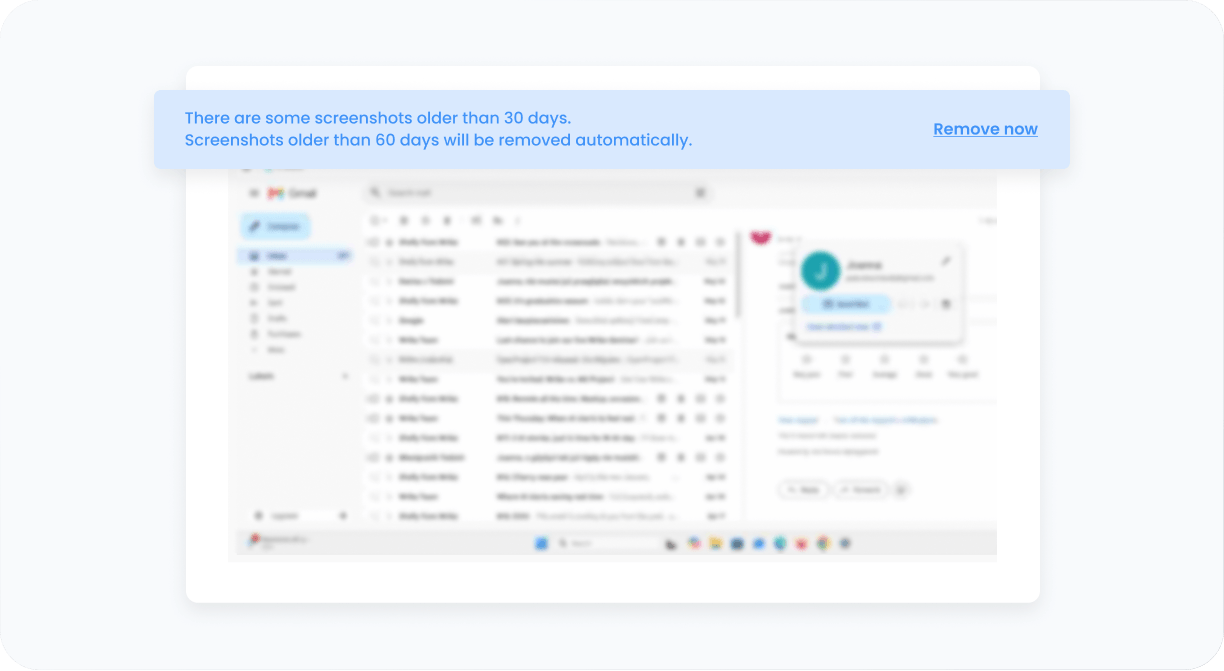
The TimeCamp desktop app captures screenshots at set intervals (every 10 minutes by default; we can change this at the account administrator's request). Screenshots are kept for 60 days, then disappear automatically.

Screenshots in TimeCamp are visual proof of billable hours and evidence of the work done. If a dispute with a client comes up, you just show the timestamp and the website or tool where the work happened, and the work is easy to verify, without looking over anyone's shoulder.

Screenshots give visual context for the work, so you can oversee remote employees' activity without micromanaging. Combined with clear time reports, they also help you bill overtime based on the time actually recorded, not on timesheets filled in from memory.

Screenshots are taken by the desktop app installed on the employee's computer, available for Windows, Mac, and Linux. Screenshots can be viewed in your web browser. Screenshots are not available in the mobile app.

Yes. Screenshots in TimeCamp can run in a limited mode, for example by blurring the image details. Sensitive content stays unreadable.

timecamp img

Add visual context to your work hours

Try screenshots during your free trial, or book a call with our sales team to talk through how the feature could work for your team.

14-day free trial No credit card
badge
badge
badge
badge
badge
badge
badge
badge
badge
badge