
Log and edit your time entries
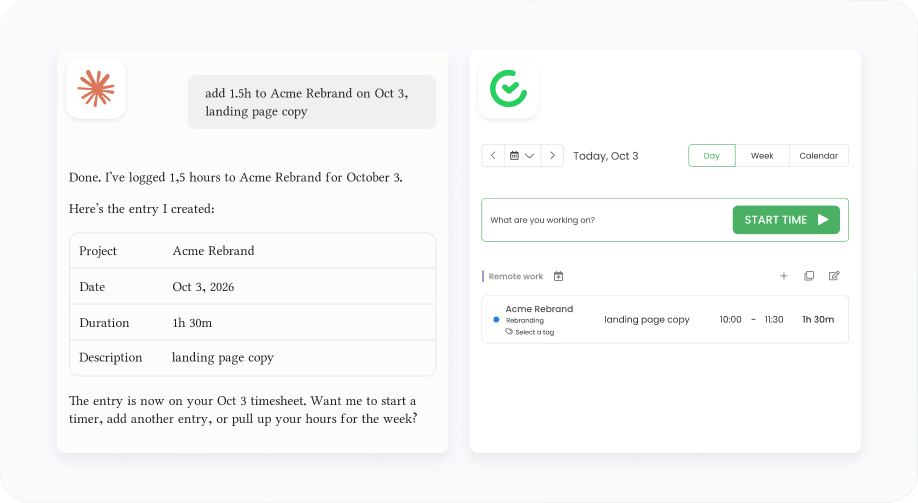
Tell your assistant what you've been working on – it creates new time entries in your timesheet, assigns them to a project or task, and leaves a description for clarity.
Crafted locally, trusted globally












Task TimeCamp with time tracking and project management while talking to your AI Assistant. Track time, get reports, organize projects and tasks, all in plain language as your workday runs.
Tell your assistant what you've been working on – it creates new time entries in your timesheet, assigns them to a project or task, and leaves a description for clarity.
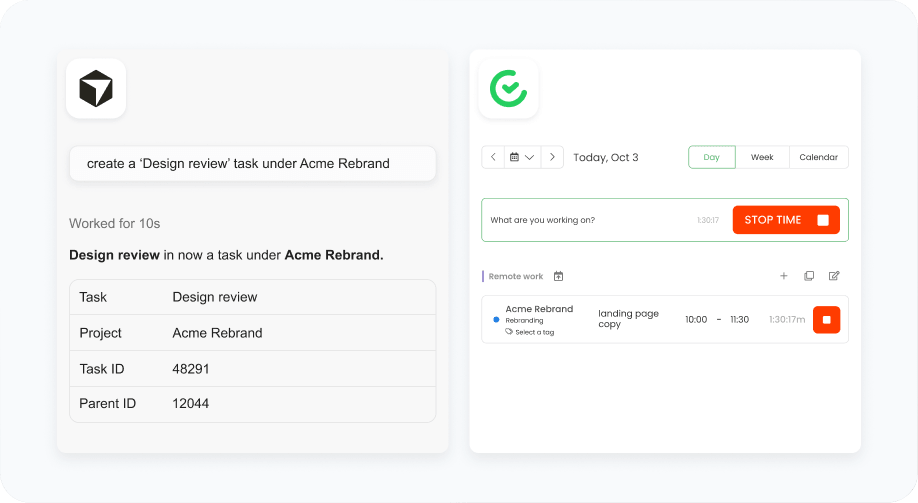
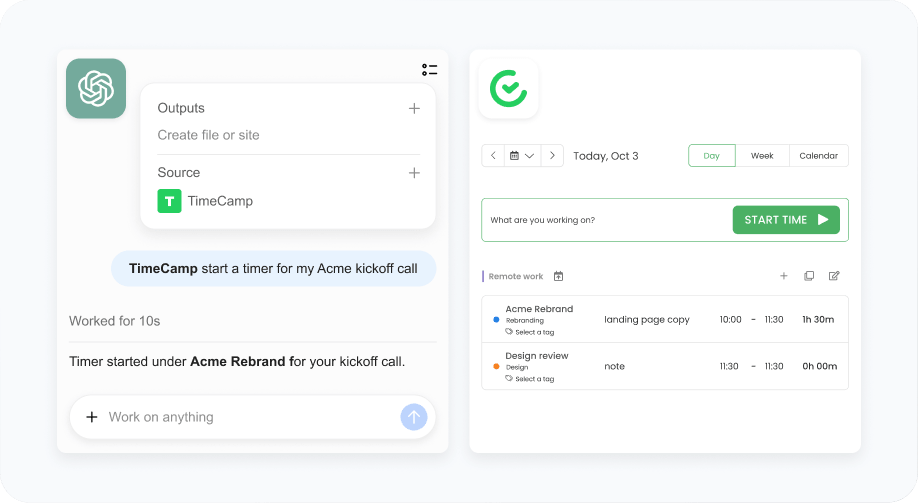
Start and stop timers while working on daily tasks with your AI Assistant. And when your timesheets get messy, just ask it to organize unassigned entries into the right projects.
Create a new project, browse tasks, and add tags to your time entries, so your workspace stays uncluttered even when you can't spare time to keep it tidy.
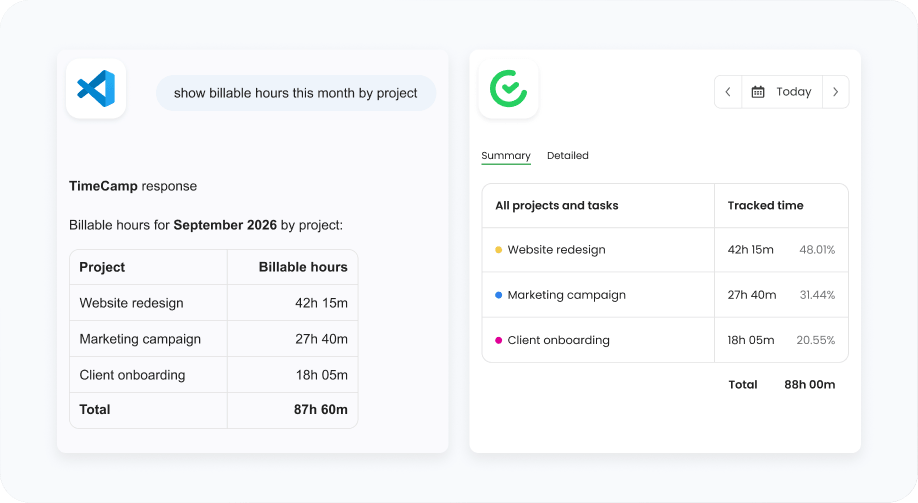
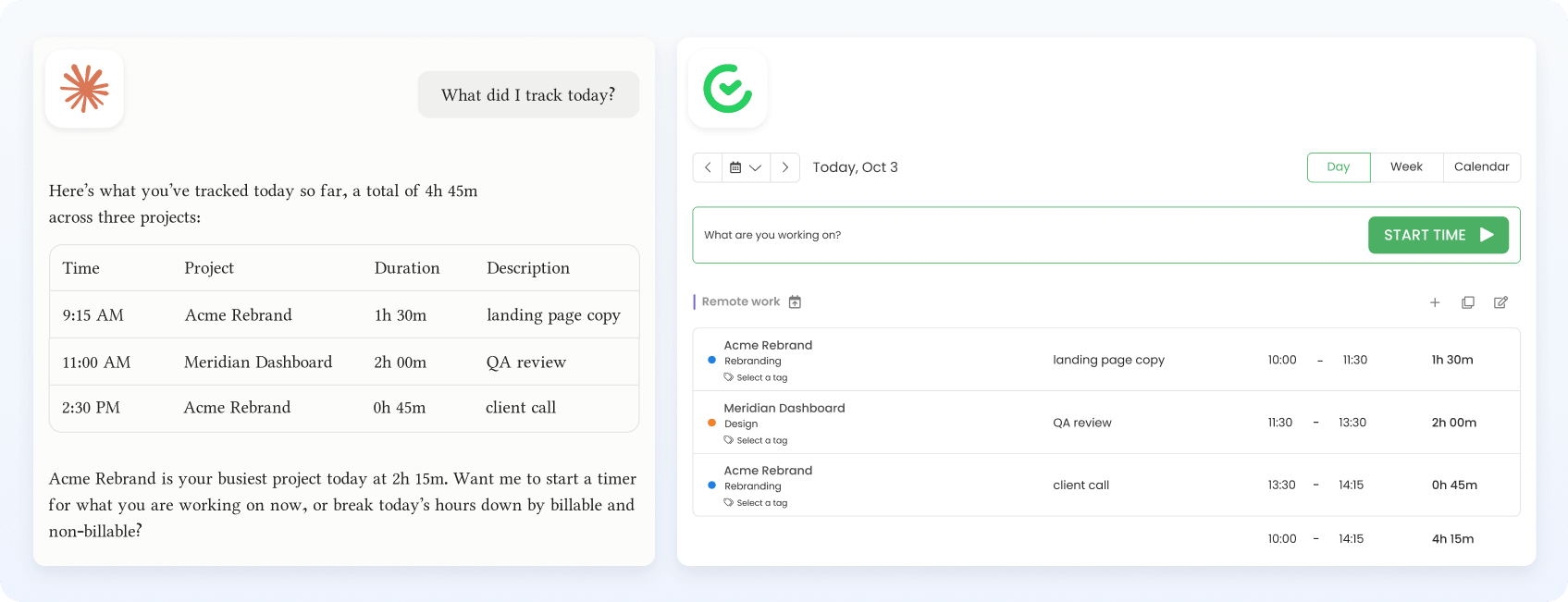
Ask your AI Assistant to display time insights and summaries to you, based on TimeCamp data. Get them grouped and filtered according to your reporting workflow in TimeCamp.
Connect and authorize the TimeCamp remote MCP server once, over a single MCP endpoint. Works with most common MCP clients, and the setup takes just a minute.

Open Customize in your Claude, go to Connectors, and add a custom connector with the endpoint https://mcp.timecamp.com/mcp, then authorize. If you prefer the manual route, add the server to your Claude Desktop configuration file and restart Claude Desktop. In Claude Code, just run claude mcp add timecamp https://mcp.timecamp.com/mcp and authorize when prompted. Once connected, just ask Claude to pull data from your TimeCamp account while chatting.

Open Settings in ChatGPT, go to Plugins, and add a new connection. Search for TimeCamp or enter the endpoint https://mcp.timecamp.com/mcp, and authorize. Custom MCP servers run in Developer Mode, available on Plus and Pro plans, so upgrade before connecting your MCP client. Once connected, you can prompt TimeCamp to show time entries and insights inside any chat.

Go to Settings in Cursor, find the MCP servers section, and then add a new server using the MCP endpoint https://mcp.timecamp.com/mcp, then authorize when asked. If you prefer establishing a connection directly, just add the server to Cursor's MCP config file using the same endpoint. Save and restart Cursor or reload the window to update the connection, and authenticate with your TimeCamp account. From then on, you can add time entries, start timers, or get reports without leaving Cursor.

Connect any MCP-compatible client the same way: add the endpoint https://mcp.timecamp.com/mcp to that client's MCP configuration and authorize the connection once. In Windsurf, go to MCP settings, and in VS Code (Copilot) just add it to your .vscode/mcp.json file.
Now you can interact with your TimeCamp data through natural language commands or simply by asking your Agent simple questions. Find usage examples below – a command with a sample question attached.

For me, the biggest benefit is simple: better operational data leads to better business decisions.
Gives us better control over projects, improves efficiency, and makes client billing and internal planning much easier.
Yes. The official TimeCamp MCP server is a remote MCP server at https://mcp.timecamp.com/mcp, and it connects AI assistants to your TimeCamp account so you can track time in natural language.
MCP is an open standard that lets AI applications communicate with outside tools. The TimeCamp MCP server implements it, so any MCP client can access your time data from our time tracking platform through a single endpoint.
It is https://mcp.timecamp.com/mcp. Add this endpoint to the settings of your MCP tools and authorize with your TimeCamp account.
Any MCP-compatible client, including Claude Desktop, Claude Code, ChatGPT, Cursor, Windsurf, and VS Code with GitHub Copilot.
Add the endpoint in your client's connector or MCP settings and authorize once. The setup section above has the steps for each tool, and the docs cover the full walkthrough.
You can create time entries, start and stop timers, browse your active projects, create tasks, handle task assignments, and pull billable hours for any date range, all through natural language commands.
Yes. Anyone on your account can connect their own MCP tools, and the assistant provides data that each authenticated user can access, so your entire team can work this way without seeing more than they should.
Yes, the server is available to all users at no extra cost. You only cover your own assistant's usage, since it runs on your chosen AI tool's plan.
Yes, since it's our official MCP server, you can be sure we provide you with a safe connection. You authorize through OAuth; the assistant acts only on your requests, and you can revoke access at any time. It works within the necessary permissions of your own TimeCamp account – during establishing a connection, you'll be asked to authorize with your TimeCamp account.
No. TimeCamp MCP server is a hosted, remote MCP server, so you connect using a URL: https://mcp.timecamp.com/mcp. Some local clients use JSON configuration that needs Node.js, which the docs explain.
No. Our AI Time Tracker is a separate desktop app with its own Assistant features. The MCP server connects other AI assistants you already use to your TimeCamp workspace, so you can track time without leaving your workflow.

Track time without leaving your workflow, while chatting with your AI assistant.


