TimeCamp's free online timer runs multiple named timers in your browser – start and stop each task, watch the total add up, then print the list or save it as a PDF.
Online Timer
TaskTimeAction
No tasks yet – type a task name below, press Add task, then Start
to run its timer.
Total time0:00:000 tasks
Running now0timers
Total in decimal0.00hours
Next week, let your time card fill itself.
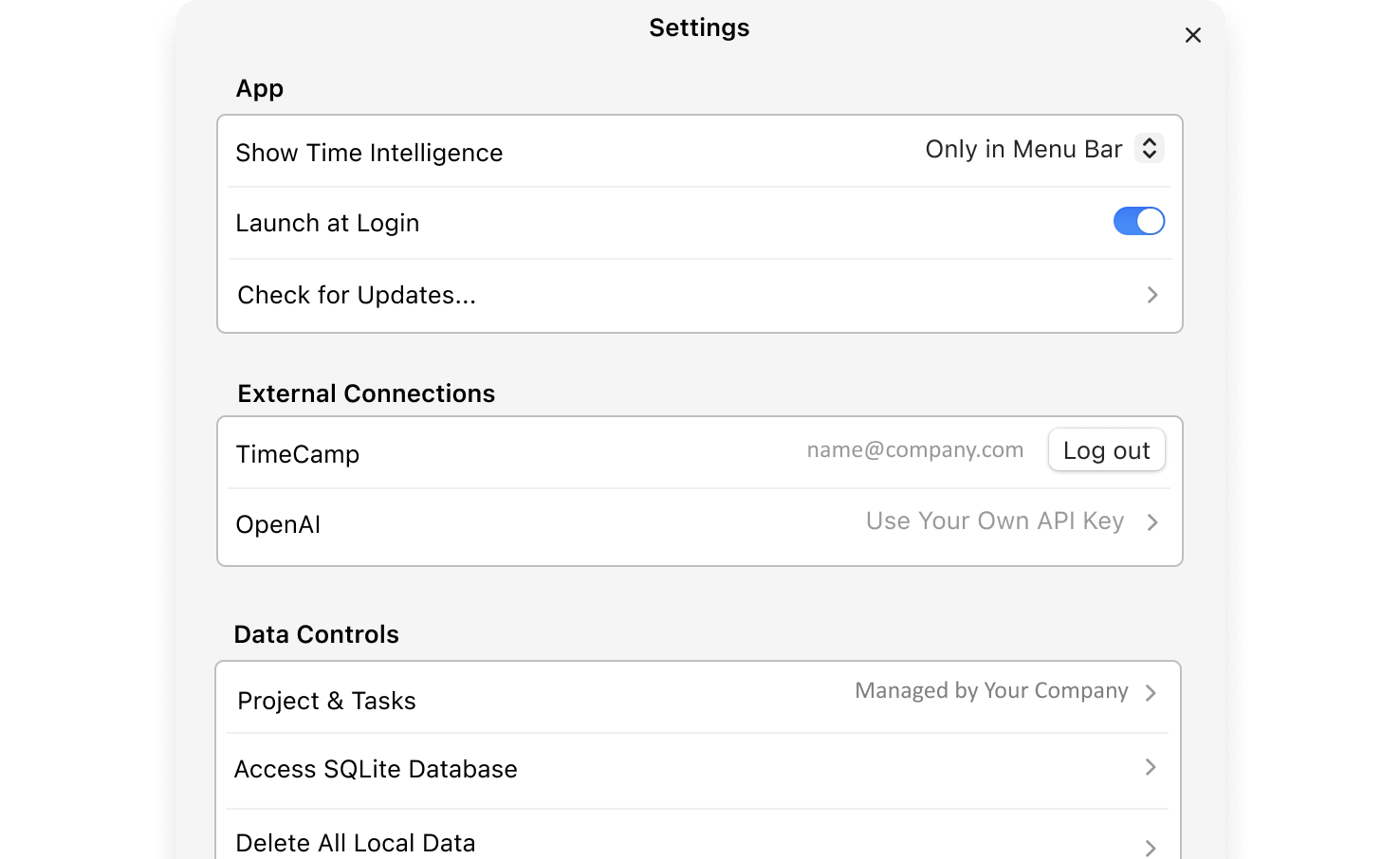
AI Time Tracker is a desktop app for Mac and Windows that helps you fill in your time card.
Type a name for each thing you work on – a project, a client, a
chore – and press Add task. Each task gets its own timer.
Start and stop as you switch
Press Start on the task you are working on. Switching tasks? Press
Stop on the running one and Start on the next – every task keeps
its own count, and the total adds them all up.
Print or keep going tomorrow
Your tasks and totals stay in this browser, so you can close the
tab and come back later. When you are done, press Print / Save as
PDF for a clean timesheet of what you worked on.
Timers count real seconds from the clock, so a nap, a locked screen or
a switched tab does not distort them – the same seconds are counted
whenever the timer was running.
Online timer – frequently asked questions
Yes. The TimeCamp online timer is free, with no sign-up and no
installation. Run as many task timers as you like, then print the
list or save it as a PDF.
Yes. Every task has its own Start and Stop button, so you can run
several timers in parallel – for example one per client. Each task
keeps its own time and the summary adds up all tasks together.
Yes. The timer counts real seconds from the device clock, not from
loops in the page, so switching tabs, a locked screen or a short
sleep does not lose time – whatever elapsed while the timer was
running is counted when you come back.
In the browser, the timer cannot tick in a closed tab – your tasks
and their totals are saved, but time stops when the page is gone.
If you want timers that keep running in the background, use the
free AI Time Tracker desktop app – it
keeps counting and fills in your timesheet while you work.
Yes – your task names and their times are kept in this browser's
storage on your device, so the list is still there when you come
back. Nothing is sent to TimeCamp. Press Reset all to clear
everything.
Yes. Press Print / Save as PDF to get a clean one-page timesheet:
task names, time per task in hours, minutes and seconds, and a
total in hours and in decimal hours for payroll.
Payroll systems usually add up time in decimal hours – 1:30 is
1.50 h. The printout shows both formats side by side, so you can
copy either. To convert single values by hand, use the
decimal hours calculator.
A stopwatch counts one thing up from zero. A countdown timer
starts at a set time and runs down to zero, usually with an alarm.
This online timer is a task timer: many named stopwatches at
once, one per task, with a total at the end – the shape of a
timesheet, not a kitchen timer.
You can time your pomodoros with it, but it does not beep after 25
minutes or schedule breaks. For that, use our
Pomodoro timer.
Press the A� button next to a task to remove just that task with
its time. Press Reset all to clear the whole list. Both stop the
removed timers first, so nothing keeps counting in the
background.
Yes. The timer works in any modern mobile browser and the layout
adjusts to small screens – touch targets stay large enough to tap
with one thumb, and the fields use 16px text so iOS does not zoom
the page when you type.
Yes. The
free AI Time Tracker by TimeCamp runs in
the background on your Mac or Windows computer, suggests time
entries based on the apps and documents you work in, and adds
nothing to your timesheet until you approve it. It does not record
keystrokes.
Other time calculators
Time Card Calculator
– add up a week of clock-in and clock-out times for payroll.